Forgot your Lorex Connect app password? This article shows you how to reset it, plus how to change your password when you’re logged in. For more information please refer to Lorex Connect App - FAQ & Troubleshooting.
TABLE OF CONTENTS
Forgot Your Password
- Tap Log in > Forgot Password on the app’s login screen.
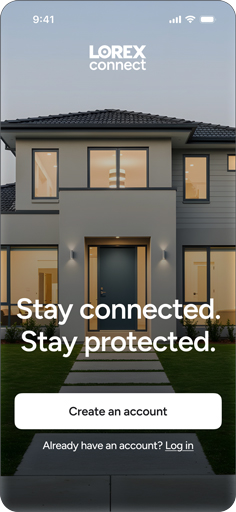
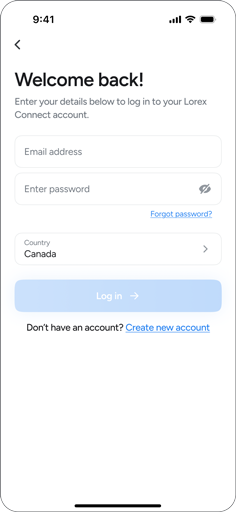
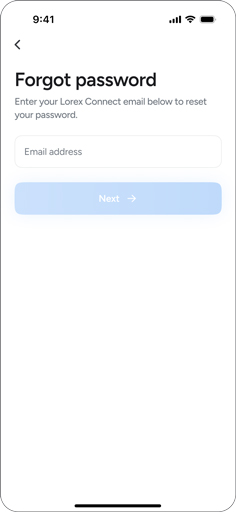
- Enter your email and country, then follow the two-step verification.
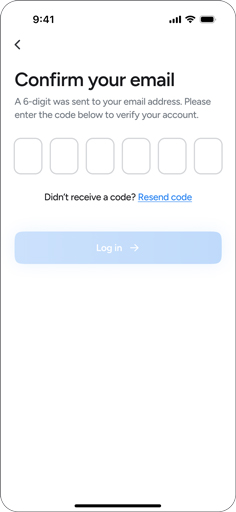
- Enter the 6-digit code sent to your email.
- Create a new password and log in again.
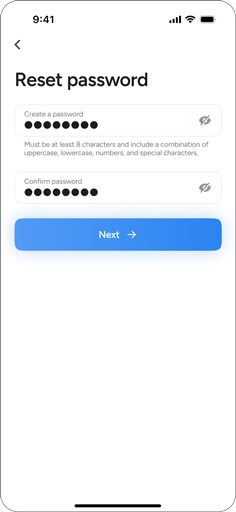
- Enter the 6-digit code sent to your email.
Change Your Password
- Tap Account settings>Privacy and security>Update password.
- Enter the 6-digit code sent to your email, then Continue.
Didn’t get it? Tap Resend code and check spam/junk. - Update password and tap Save.
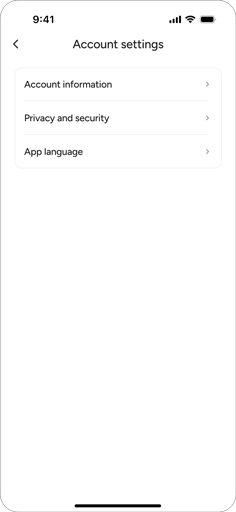
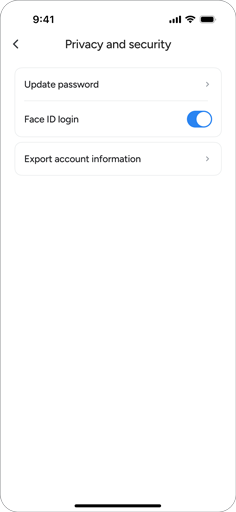
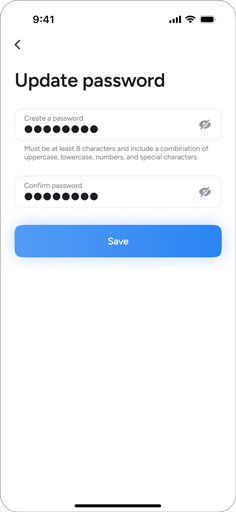
Was this article helpful?
That’s Great!
Thank you for your feedback
Sorry! We couldn't be helpful
Thank you for your feedback
Feedback sent
We appreciate your effort and will try to fix the article
